

The number on your visiting card, your Google Business Profile, your Instagram bio, your delivery slips, and three years of WhatsApp statuses is the number your customers already have saved. Asking them to start messaging a new one costs you a slice of your existing pipeline — quietly, and permanently.
So the first question every business owner asks before upgrading to the WhatsApp Business API is the right one: can I just use my existing number?
The answer is yes. But how you do it decides whether you keep your chat history, whether you can still use the Business App on your phone, and whether your team loses access for a few hours in the middle of a working day. Most guides online still describe only the destructive route, because that was the only option for years. It isn’t anymore.
If you’re evaluating the wider system this number will plug into, see our guide to the WhatsApp CRM for Indian businesses and how automation agencies in India structure these setups.
Everything depends on where your number currently lives.
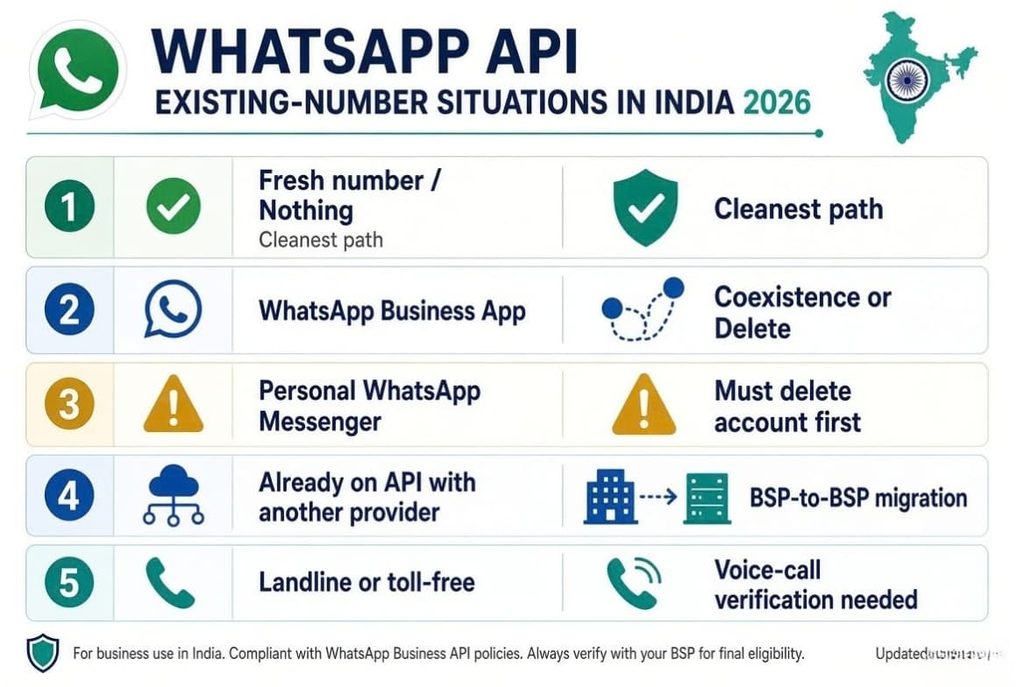
| Your number is currently on… | Can it go on the API? | What you should expect |
| Nothing — a fresh SIM or landline | Yes | Cleanest path. Just verify and register. |
| WhatsApp Business App | Yes | Two routes: Coexistence (keep app + history) or delete-and-register (lose history). |
| Personal WhatsApp Messenger | Yes, but | The WhatsApp account must be deleted first. Numbers in use with the personal app aren’t supported directly. |
| Already on the API with another provider | Yes | This is a BSP-to-BSP migration, not a fresh registration. |
| A landline or toll-free number | Yes | Must be able to receive the verification code by voice call. |
Two rules apply to every case: the number must be able to receive an OTP by SMS or voice call at the time of verification, and one number can serve only one WhatsApp destination at a time — app or API — unless you’re using Coexistence.
This is the route most Indian businesses should be asking for in 2026, and the one competitors’ blogs largely haven’t updated for.
Meta allows partners to offer onboarding for existing WhatsApp Business App numbers. When you onboard this way, you connect your existing Business App account to the Cloud API, and afterwards you can send high message volumes through the platform while still replying one-to-one from the Business App on your phone — with messaging history kept in sync between both. Onboarding through a provider that supports Business App number onboarding preserves your messaging history, instead of wiping it.
How it works in practice:
What this gets you: no downtime, no lost history, no “please save our new number” announcement to your customer base, and a shop-floor team that can keep using the familiar app while your sales team works from the CRM inbox.
What to confirm before you commit: not every provider supports this onboarding path, and feature behaviour on the Business App changes slightly after connection. Ask your agency directly whether they support Business App number onboarding — if the answer is vague, assume you’ll be put on the destructive route.
This is the traditional path, still used when Coexistence isn’t offered or isn’t appropriate.
The trade-off is stated plainly in Meta’s own documentation: to use an existing WhatsApp Business App number with the Cloud API, you either delete the account or onboard through a partner supporting Business App onboarding — and if you delete and then register the number for Cloud API, your existing messaging history is lost and you won’t be able to use that number with the Business App again unless you deregister it from the API.
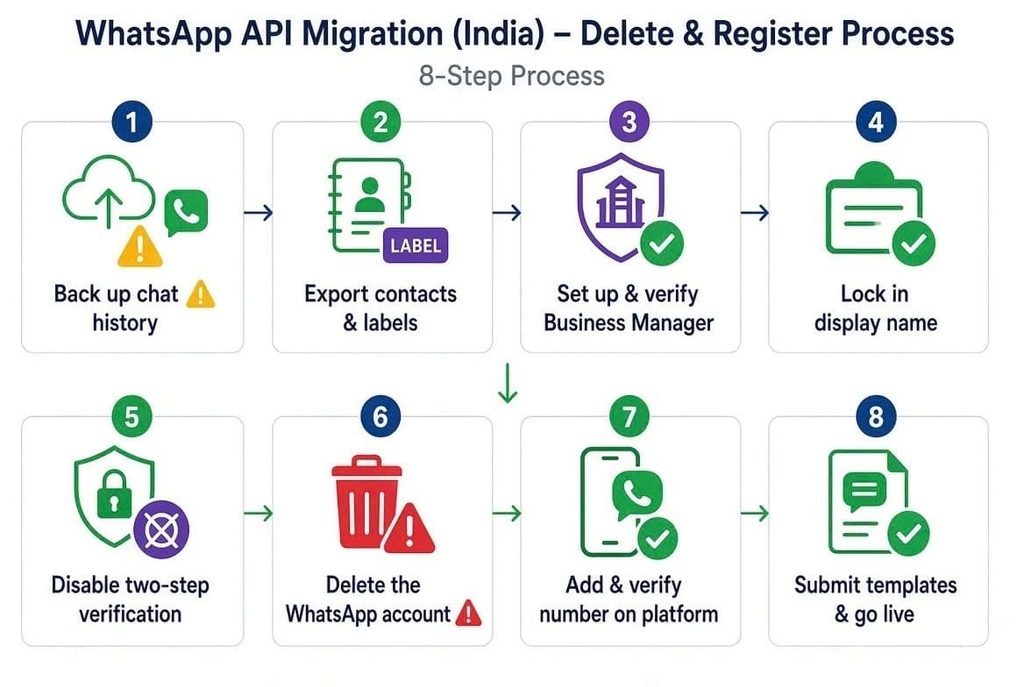
Step 1 — Back up chat history. Meta’s guidance is explicit about backing up before you start, and there are separate backup procedures for Android and iOS. On Android, this runs through Google Drive and local storage. Export individual chats you’ll need for records — invoices, order confirmations, disputes. Once deleted, this is gone.
Step 2 — Export contacts and labels. The Business App’s labels don’t transfer. Export your customer list to a spreadsheet so it can be re-imported into the CRM with tags intact.
Step 3 — Set up Meta Business Manager and get verified. Business verification needs matching legal documents — GST certificate, certificate of incorporation, utility bill or bank statement — with your business name and address consistent across all of them. Mismatched details are the single most common cause of rejection for Indian businesses.
Step 4 — Lock in your display name. Your display name must follow Meta’s display name guidelines and relate clearly to your business. Names are difficult to change afterwards, and a rejected name blocks campaigns. Decide it properly, once.
Step 5 — Disable two-step verification on the number. If a six-digit PIN is set on the Business App, remove it first, or registration will fail.
Step 6 — Delete the WhatsApp account on that number. Not “uninstall the app” — delete the account from within WhatsApp settings. It can take a few minutes for the number to become available again. Incoming messages during this gap are queued by WhatsApp’s servers and delivered once registration completes.
Step 7 — Add and verify the number on the platform. Add the number in WhatsApp Manager under your WABA, verify by SMS or voice call, and set your two-factor PIN.
Step 8 — Submit templates and go live. Draft your templates by the correct category, submit for approval, connect your chatbot flows and integrations, and switch the team over.
Realistic timeline: 2–5 days for business verification, 1–2 days per round of template approval, and a few more days for flows and integrations. The number itself is usually unavailable for only a few minutes.
If your number is already on the API with a different BSP and you’re unhappy with the pricing, support, or platform, you don’t delete anything. The number and its WABA are migrated between providers.
Key points for Indian businesses doing this:
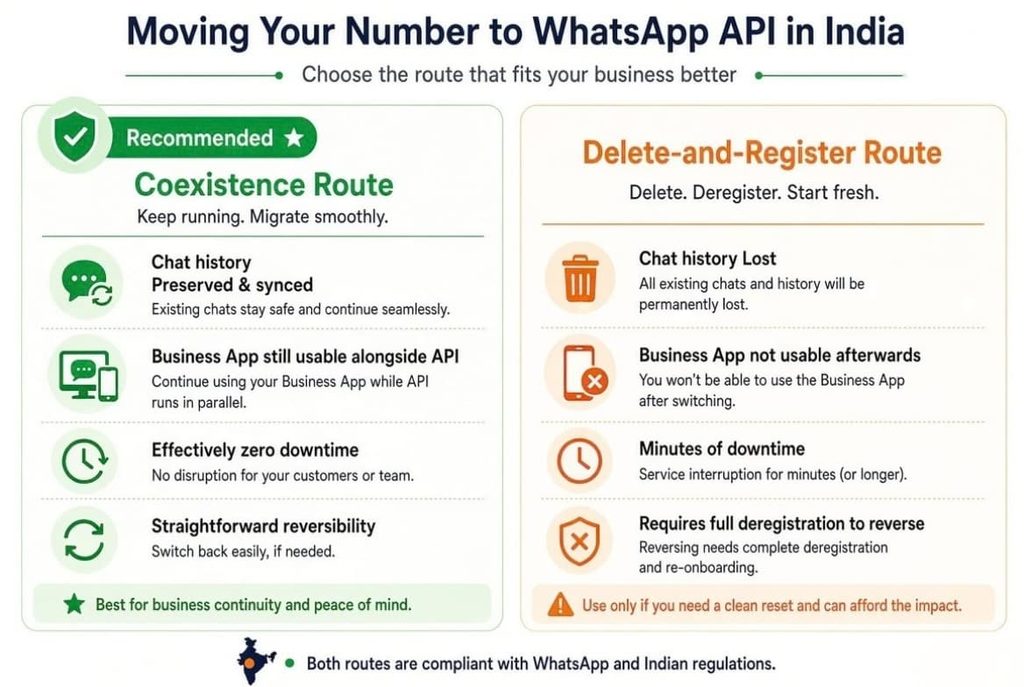
| Coexistence route | Delete-and-register route | |
| Chat history | Preserved and synced | Lost |
| Business App usable after | Yes, alongside the API | No, unless you deregister |
| Contacts on the number | Preserved | Preserved on the device, not in the API |
| Labels from the Business App | Not carried into the CRM | Not carried into the CRM |
| Downtime | Effectively none | Minutes, while re-registering |
| Reversibility | Straightforward | Requires deregistration from the API |
What you gain either way: unlimited agents on one number, no-code chatbots, segmented broadcasts beyond the app’s 256-contact limit, automation triggered by your store or CRM, delivery and read analytics, and eligibility for the green tick.
Migrating a live number is a low-drama job when it’s planned and a disaster when it isn’t. SigmaFlux Agency runs this end-to-end for businesses in Mumbai and across India:
See how the full setup works on our WhatsApp marketing page.
You do not need a new number to move to the WhatsApp Business API, and in 2026 you may not need to sacrifice your chat history either. The path that keeps your Business App and history intact exists — it just requires a provider that supports it and a migration plan written before anyone opens WhatsApp settings.
Back up first, verify your documents, choose your display name carefully, and migrate in a quiet hour. Done properly, your customers never notice anything except that you started replying faster.
Can I use my existing number for the WhatsApp API?
Yes. A number on the WhatsApp Business App can be onboarded to the Cloud API either through a partner supporting Business App onboarding — which preserves history and lets you keep using the app — or by deleting the WhatsApp account and re-registering the number, which loses history.
Will I lose my chat history?
Only on the delete-and-register route. Meta’s documentation states that if you delete the Business App number and then register it for Cloud API, existing messaging history is lost. Onboarding through a partner that supports Business App number onboarding preserves it.
Can I keep using the WhatsApp Business App after going on the API?
With Coexistence onboarding, yes — you can still message one-to-one from the app while sending high volumes through the platform, with history kept in sync. With the delete-and-register route, no, unless you deregister the number from the API.
Can I use my personal WhatsApp number?
The number must be deleted from WhatsApp Messenger first, since numbers actively in use with the personal app aren’t supported on the API. Think carefully before converting a number you also use personally — it becomes a business asset.
How long is my number unavailable during migration?
Usually only a few minutes between deletion and re-registration. Messages sent to you in that window are queued by WhatsApp and delivered once registration completes.
Do my contacts get deleted?
No. Contacts live on your device and in your exported list. What’s lost on the destructive route is the message history, not your phonebook.
Can I move back to the WhatsApp Business App later?
Yes, by deregistering the number from the API first. It isn’t instant, so treat the move as a considered decision rather than an experiment.
Can I use a landline or toll-free number?
Yes, provided it can receive the verification code via voice call.
Can two people use the same number after migration?
Yes — that’s the main reason to migrate. The API supports an unlimited number of agents working a single number through a shared inbox.
My number is already with another API provider. Can I switch?
Yes. That’s a BSP-to-BSP migration rather than a fresh registration. Quality rating and messaging limits generally carry over, though templates usually need resubmitting on the new account.
Do I need a green tick to use my existing number on the API?
No. The green tick is separate verification based on brand notability and isn’t required to send messages or run automations.